Let's get you playing.
Opens right in your browser, no App Store needed. Works on iPhone, Android, and tablet.
7-day free trial · Cancel anytime
A peek inside
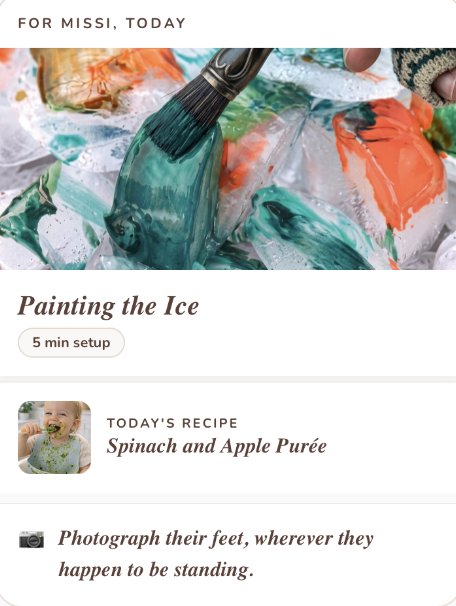
Sorted for you, every day
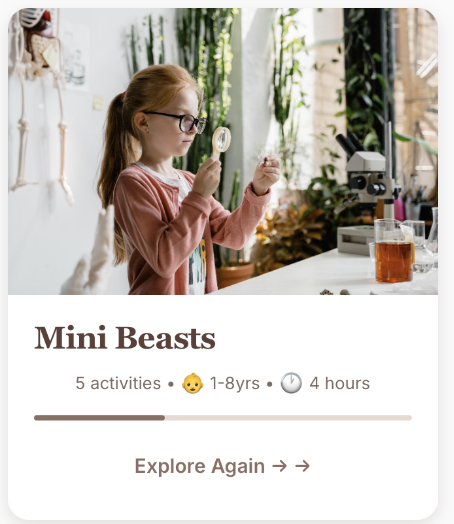
Weeks of hands-on fun
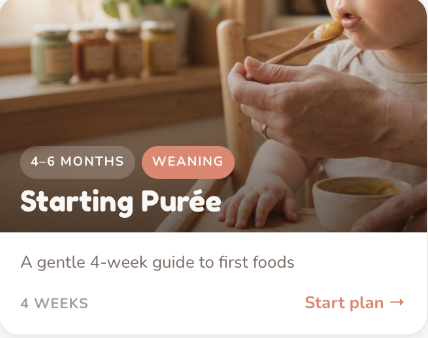
Meals planned, zero stress
Frequently Asked Questions
-
Why doesn't my work or business email address work to sign in?
Sign-in with work and business email addresses is not supported at the moment — we're working to resolve this. In the meantime, we recommend signing in with a personal email address such as Gmail, Hotmail, or iCloud for the best experience. We apologise for any inconvenience and will update this as soon as it's available.
-
Where do I subscribe to Joyora?
When you sign in to Joyora for the first time, you'll be guided through the subscription process automatically. Simply open the app at app.joyora.com.au, sign in with your email address, and follow the steps on screen. Joyora is $12.99/month and you can cancel anytime. If you have any trouble, email us at support@joyora.com.au.
-
I subscribed but I still can't access the full app — what do I do?
First, try closing the app completely and reopening it — this refreshes your subscription status. If the issue persists, make sure you're signed in with the same email address you used when subscribing. If you're still experiencing problems, please contact us at support@joyora.com.au and we'll get it sorted quickly.
-
The app isn't loading properly — what should I do?
Try these steps in order: (1) Check your internet connection — Joyora requires an active connection to load content. (2) Close the app and reopen it from your home screen. (3) Clear your browser cache if you're opening the app in a browser rather than from your home screen. (4) If you added the app to your home screen a while ago, try opening it fresh in Safari or Chrome instead. Still not working? Email us at support@joyora.com.au.
-
Can I use Joyora on both my phone and tablet?
Yes — your Joyora subscription works across all your devices. Simply sign in with the same email address on each device and you'll have full access. You can add Joyora to the home screen on both your phone and tablet using the steps above.
-
Can my partner access Joyora on their device too?
One subscription is intended for one family. Your partner is welcome to sign in using the same email address and password on their own device. This way, both of you can access activities, update the planner, and add to the Milestone Vault together.
-
How do I set up my child's profile?
Once you're signed in, tap the profile icon and select "Add Child Profile." Enter your child's name and date of birth — Joyora will automatically filter all activities and content for their age. If you have more than one child, you can add multiple profiles and switch between them at any time.
-
How do I cancel my subscription?
You can cancel your subscription at any time inside the app — tap your profile icon, go to "Subscription," and select "Cancel Subscription." You'll continue to have full access until the end of your current billing period. If you're having trouble cancelling, email us at support@joyora.com.au and we'll take care of it for you.
-
Do I need to download anything from the App Store or Google Play?
No — Joyora is a web app, which means there's nothing to download from the App Store or Google Play. Just open your browser, go to app.joyora.com.au, sign in, and add it to your home screen using the steps above. This means the app is always up to date automatically — no manual updates ever needed.